How to validate if the date entered by the user falls within a date range?
"How to make one of the delivery date not available"- Support forum
If you deliver, run a course or take bookings only on certain dates, a date question that accepts any date means calling people back to change it. Date questions in Google Forms accept any date, with no option to limit the range. With Formfacade, a date question has its own validation rules, so you allow only the dates between a first and a last date and people can only pick a day you can serve them. The responses are still collected in your Google Form, so you can sort them by date in Google Sheets.
Create your form and follow the steps below. The example lets customers pick a delivery date between 25 September and 1 October.
Date validation: Specified date range
- On the page that opens, name your form, click Build form and click Proceed.
- Click on the "Edit" tab.

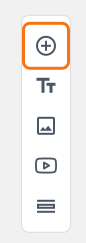
- Click on the + icon (Add field) in the toolbar on the right.
- Enter "Choose your preferred date" as the question and select Date in the question type list.
- Click on the ⚙️ icon at the bottom right of the question.
- Select the "Answer" tab and click Configure under Validation.
- Select "Allow between two dates" and enter the first date and the last date.
- Click Save.
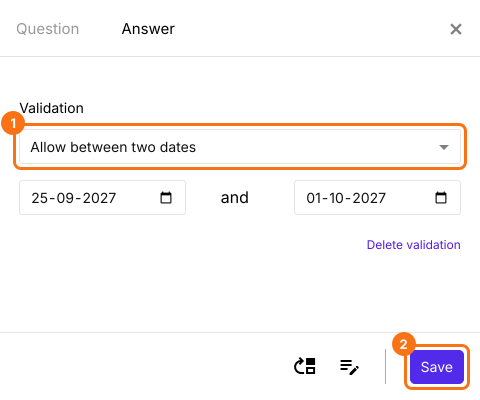
The date box on your form will now allow only the dates between these two dates.
Summary
If your users can only choose dates in a certain range, Google Forms cannot validate it. With Formfacade, you can add the Allow between two dates validation to the date question. Create your form and complete the steps above.
Last updated: