Number
"Google Form - Regular Expression to Mandate 0-100% with no decimals?"- Google Docs Editors Community
Ask for an age, a quantity or a percentage in a short answer box and some people type ten instead of 10, or a number you can't accept, and you only find out when you read the responses. Google Forms has no number question. You add Response validation to a short answer, and people often reach for a regular expression to get the range right. In Formfacade you pick Number in the question's validation and choose a rule such as Whole number or Between, so only numbers in your range get through, with your own error message for the rest.
Create your form and follow the steps below.
- Click on Create your form, name your form, click Build form and click Proceed.
- Click on the "Edit" tab

You can use short answer question with Number validation to accept numbers as answers. You can use the following number validations with short answer question.
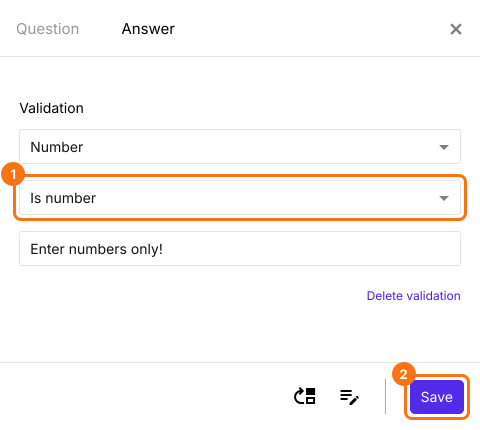
Is number
- Click on the + icon (Add field) in the toolbar on the right and enter your question
- Leave the question type as Short answer
- Enable Required toggle button to make this a mandatory question (if required)
- Click on the ⚙️ icon at the bottom right of the question, select the "Answer" tab and click Configure under Validation
- Select Number
- Select Is number
- Enter a custom error message (if required)
- Click Save
Whole number
- Click on the + icon (Add field) in the toolbar on the right
- Leave the question type as Short answer
- Enable Required toggle button to make this a mandatory question (if required)
- Click on the ⚙️ icon at the bottom right of the question, select the "Answer" tab and click Configure under Validation
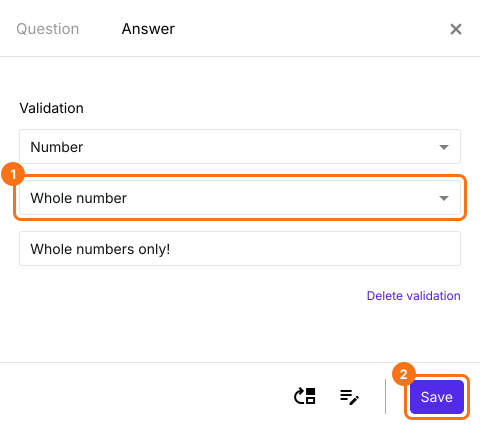
- Select Number
- Select Whole number
- Enter a custom error message (if required)
- Click Save
Between
- Click on the + icon (Add field) in the toolbar on the right
- Leave the question type as Short answer
- Enable Required toggle button to make this a mandatory question (if required)
- Click on the ⚙️ icon at the bottom right of the question, select the "Answer" tab and click Configure under Validation
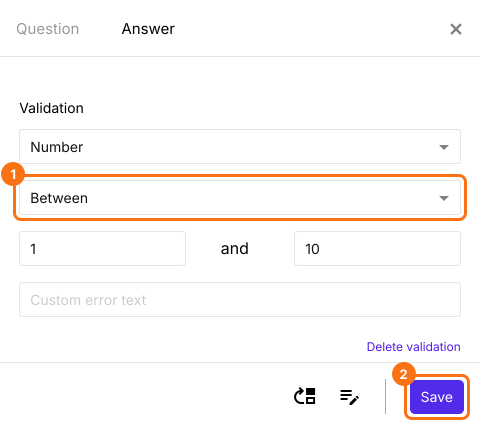
- Select Number
- Select Between
- Enter the boundary numbers to be checked with
- Enter a custom error message (if required)
- Click Save
Not between
- Click on the + icon (Add field) in the toolbar on the right
- Leave the question type as Short answer
- Enable Required toggle button to make this a mandatory question (if required)
- Click on the ⚙️ icon at the bottom right of the question, select the "Answer" tab and click Configure under Validation
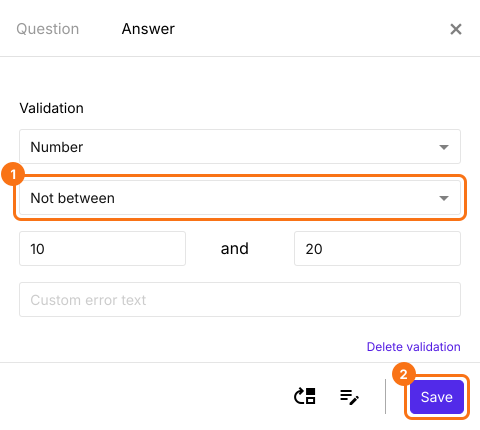
- Select Number
- Select Not between
- Enter the boundary numbers to be checked with
- Enter a custom error message (if required)
- Click Save
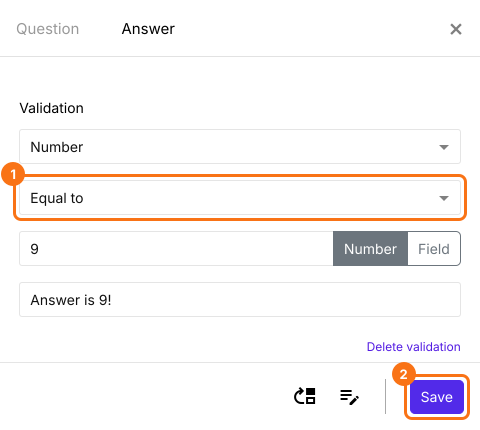
Equal to
- Click on the + icon (Add field) in the toolbar on the right
- Leave the question type as Short answer
- Enable Required toggle button to make this a mandatory question (if required)
- Click on the ⚙️ icon at the bottom right of the question, select the "Answer" tab and click Configure under Validation
- Select Number
- Select Equal to
- Enter the number to be checked with
- Enter a custom error message (if required)
- Click Save
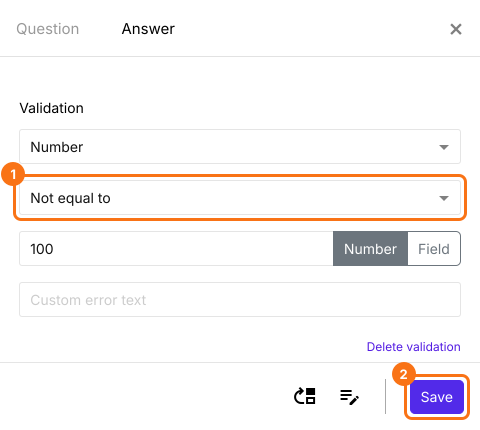
Not equal to
- Click on the + icon (Add field) in the toolbar on the right
- Leave the question type as Short answer
- Enable Required toggle button to make this a mandatory question (if required)
- Click on the ⚙️ icon at the bottom right of the question, select the "Answer" tab and click Configure under Validation
- Select Number
- Select Not equal to
- Enter the number to be checked with
- Enter a custom error message (if required)
- Click Save
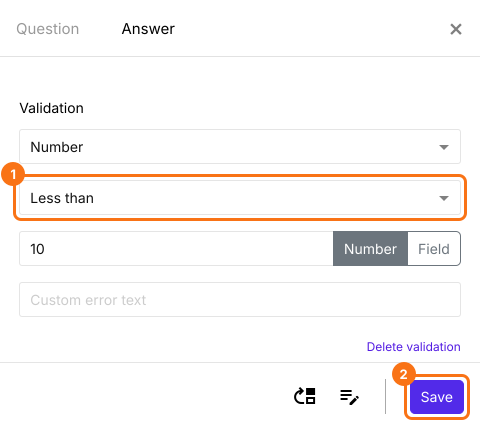
Less than
- Click on the + icon (Add field) in the toolbar on the right
- Leave the question type as Short answer
- Enable Required toggle button to make this a mandatory question (if required)
- Click on the ⚙️ icon at the bottom right of the question, select the "Answer" tab and click Configure under Validation
- Select Number
- Select Less than
- Enter the number to be checked with
- Enter a custom error message (if required)
- Click Save
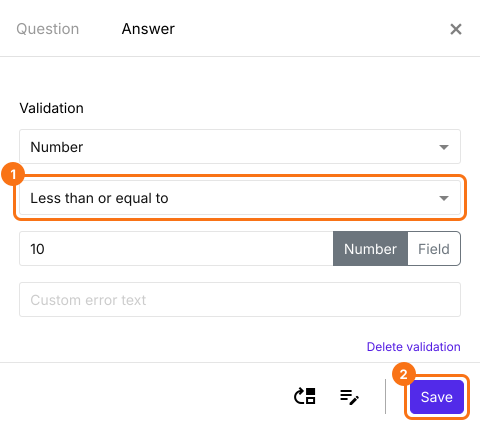
Less than or equal to
- Click on the + icon (Add field) in the toolbar on the right
- Leave the question type as Short answer
- Enable Required toggle button to make this a mandatory question (if required)
- Click on the ⚙️ icon at the bottom right of the question, select the "Answer" tab and click Configure under Validation
- Select Number
- Select Less than or equal to
- Enter the number to be checked with
- Enter a custom error message (if required)
- Click Save
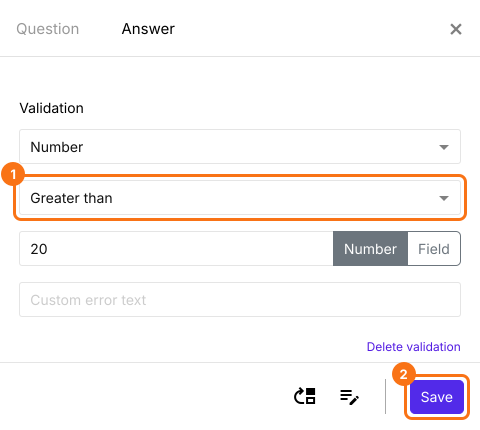
Greater than
- Click on the + icon (Add field) in the toolbar on the right
- Leave the question type as Short answer
- Enable Required toggle button to make this a mandatory question (if required)
- Click on the ⚙️ icon at the bottom right of the question, select the "Answer" tab and click Configure under Validation
- Select Number
- Select Greater than
- Enter the number to be checked with
- Enter a custom error message (if required)
- Click Save
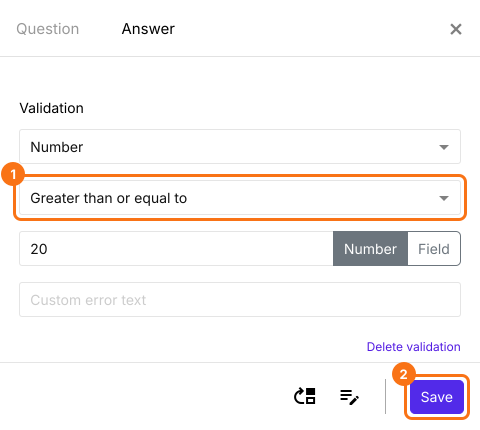
Greater than or equal to
- Click on the + icon (Add field) in the toolbar on the right
- Leave the question type as Short answer
- Enable Required toggle button to make this a mandatory question (if required)
- Click on the ⚙️ icon at the bottom right of the question, select the "Answer" tab and click Configure under Validation
- Select Number
- Select Greater than or equal to
- Enter the number to be checked with
- Enter a custom error message (if required)
- Click Save
Summary
If you need a number from your users, a short answer question will accept any text. With Number validation on a short answer question in Formfacade, you can accept only numbers and you can set the range of numbers you will accept. Create your form and complete the steps above.
Last updated: