Short answer
"Regular expression to check for referral codes"- Google Docs Editors Community
Names, email addresses, websites, referral codes: a short answer box accepts whatever people type, typos included, and you find out when you can't reach them or can't match a code. Google Forms can check the answer with Response validation, but the rules sit behind the question's menu, and anything beyond the basics means writing a regular expression. In Formfacade you open the question's validation and pick a rule: Email, URL, a minimum or maximum length, a word the answer must or must not contain, or a regular expression. People see your message until the answer fits.
Create your form and follow the steps below.
How to add a short answer question?
- Click on Create your form, name your form, click Build form and click Proceed.
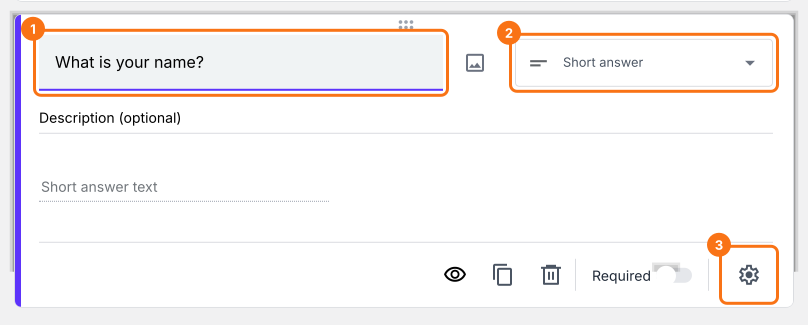
- Click on the "Edit" tab

- Click on the + icon (Add field) in the toolbar on the right and enter your question
- Leave the question type as Short answer
- Enable Required toggle button to make this a mandatory question as shown below
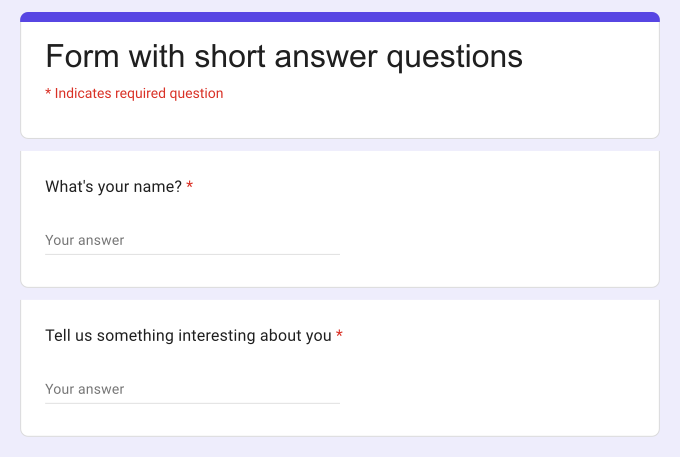
What your users see
Short answer question allows users to write answers in a few words. You can use this question to collect names, email addresses, phone numbers, website url & more. You can set rules to get the answers you need.
How to add response validation to restrict answers?
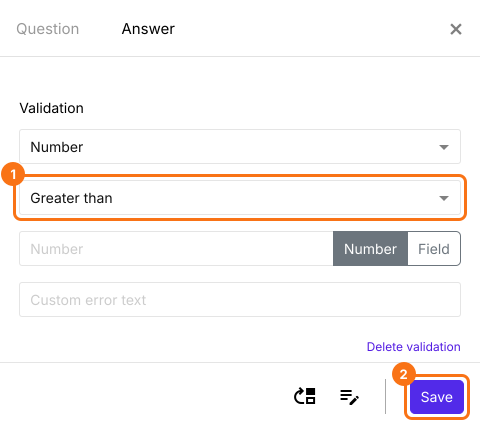
You can use pre-built validation to accept correctly formatted email address and urls as responses. You can use number, text, length and regex validations to write complex validation rules and restrict the answers.
- Click on the + icon (Add field) in the toolbar on the right
- Leave the question type as Short answer
- Click on the ⚙️ icon at the bottom right of the question, select the "Answer" tab and click Configure under Validation
- Select the validation you need and fill in its boxes
- Click Save
How to specify the character limit for short answers?
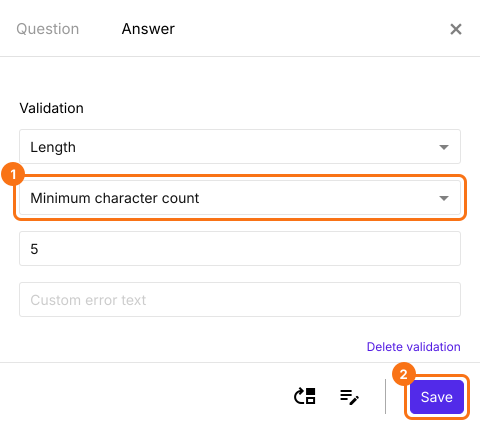
You can specify the minimum character count for your short answer question by adding the Length response validation as shown below.
- Click on the + icon (Add field) in the toolbar on the right
- Leave the question type as Short answer
- Click on the ⚙️ icon at the bottom right of the question, select the "Answer" tab and click Configure under Validation
- Select Length
- Select Minimum character count
- Enter the number of characters
- Enter a custom error message (if required)
- Click Save
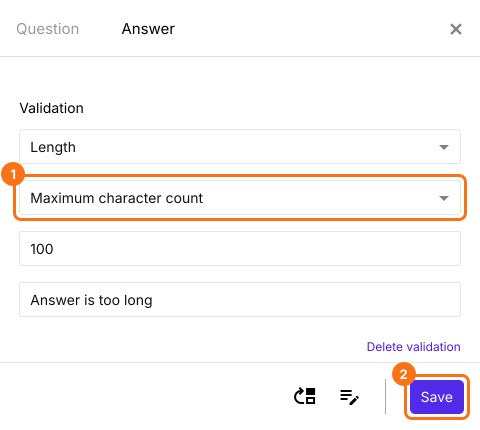
Maximum character count
You can specify the maximum character count for your short answer question by adding the Length response validation as shown below.
- Click on the + icon (Add field) in the toolbar on the right
- Leave the question type as Short answer
- Click on the ⚙️ icon at the bottom right of the question, select the "Answer" tab and click Configure under Validation
- Select Length
- Select Maximum character count
- Enter the number of characters
- Enter a custom error message (if required)
- Click Save
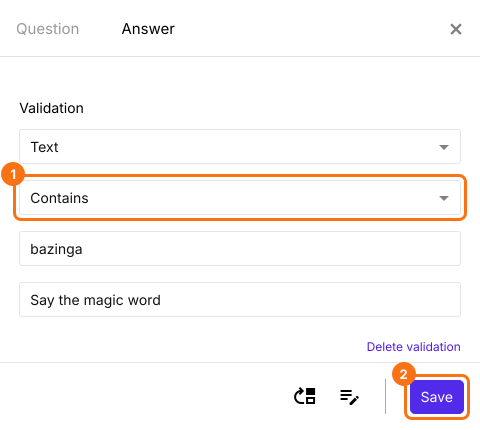
How to validate if the answer contains a specific word?
You can use the Contains text validation for short answer question to ensure that the response contains a specific word or special character and accept only those responses.
- Click on the + icon (Add field) in the toolbar on the right
- Leave the question type as Short answer
- Click on the ⚙️ icon at the bottom right of the question, select the "Answer" tab and click Configure under Validation
- Select Text
- Select Contains
- Enter the word or character that must be included in the short answer
- Enter a custom error message (if required)
- Click Save
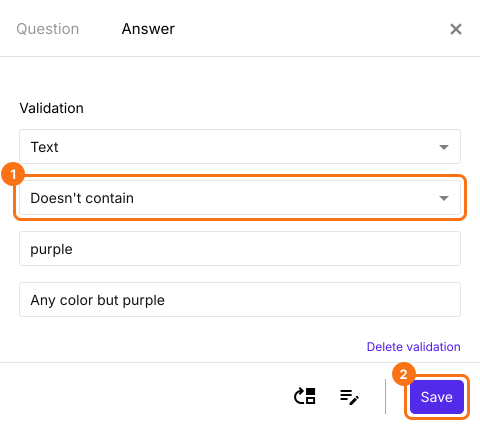
How to validate if the short answer doesn't contain a specific word or special character?
You can use the Doesn't contain text validation for short answer question to ensure that the answer doesn't contain specific word or special character and accept only those responses.
- Click on the + icon (Add field) in the toolbar on the right
- Leave the question type as Short answer
- Click on the ⚙️ icon at the bottom right of the question, select the "Answer" tab and click Configure under Validation
- Select Text
- Select Doesn't contain
- Enter the word or character that must not be included in the short answer
- Enter a custom error message (if required)
- Click Save
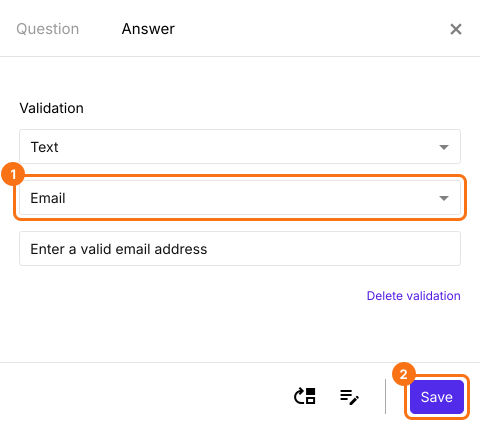
How to validate email format and accept only valid responses?
You can use the Email text validation for short answer question to validate and accept email addresses with correct format.
- Click on the + icon (Add field) in the toolbar on the right
- Leave the question type as Short answer
- Click on the ⚙️ icon at the bottom right of the question, select the "Answer" tab and click Configure under Validation
- Select Text
- Select Email
- Enter a custom error message (if required)
- Click Save
How to collect URL responses from users?
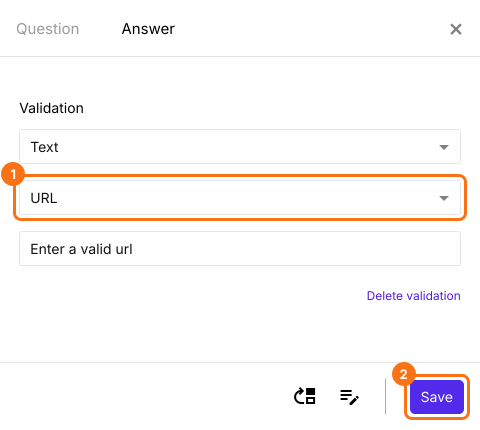
You can use the URL text validation for short answer question to collect valid urls starting with either http:// or https://
- Click on the + icon (Add field) in the toolbar on the right
- Leave the question type as Short answer
- Click on the ⚙️ icon at the bottom right of the question, select the "Answer" tab and click Configure under Validation
- Select Text
- Select URL
- Enter a custom error message (if required)
- Click Save
Summary
If you need short answers in the right format, a plain question will accept whatever users type. With the short answer question in Formfacade, users write answers in a few words and you can set rules such as email, URL, length or a specific word to get the answers you need. Create your form and complete the steps above.
Last updated: