How to organize and manage form responses?
"a way to categorise responses from a google form in the linked sheet"- Google Docs Editors Community
Signups, requests and applications land in one long list in Google Forms. Some are tests or spam, some people cancel, and some start the form and never finish. In a Google Sheet you can add a status column and color the rows, as 13 people on Google's forum have tried, but you keep it up by hand. With Formfacade, each response is a card on a Kanban board that you move to Completed, Trash or a status you create, such as Cancelled or Check-in. A daily email shows how many people submitted and how many abandoned the form midway.
Create your form and follow the steps below.
How to get your first responses?
- Click on Create your form, name your form, click Build form and click Proceed.
- Click on the "Share" tab

- Click on Open to see your form
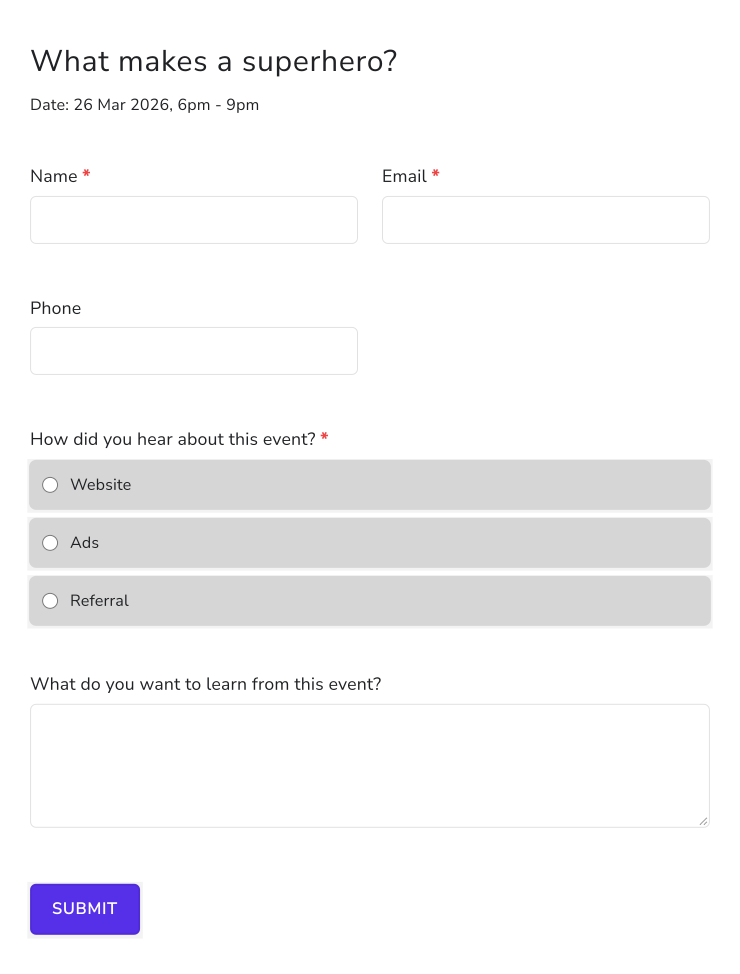
- Fill the form and click on Submit. Do this a few times, so that you have responses to organize.
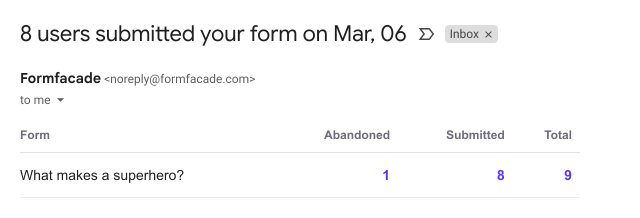
Formfacade notification emails
You will receive a daily notification email that summarizes the form activity. You can see the number of users who submitted the form and also those who started filling the form, but abandoned it midway.
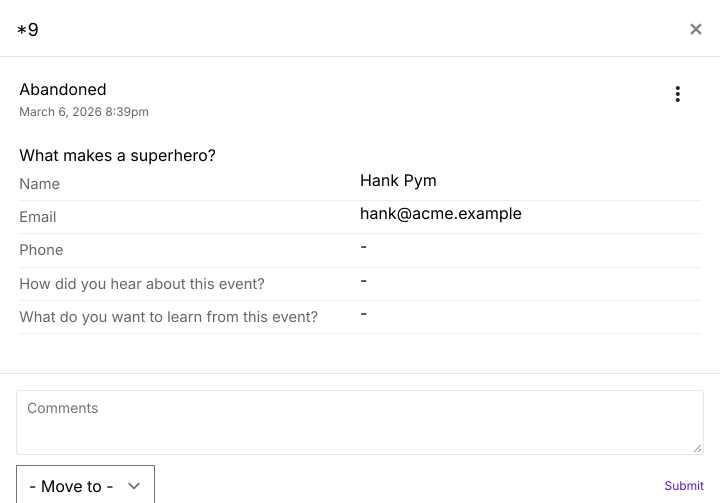
You can click on the number under "Abandoned" in the daily notification email to view individual form responses. For example, you can click on that number to see who abandoned the form and where!
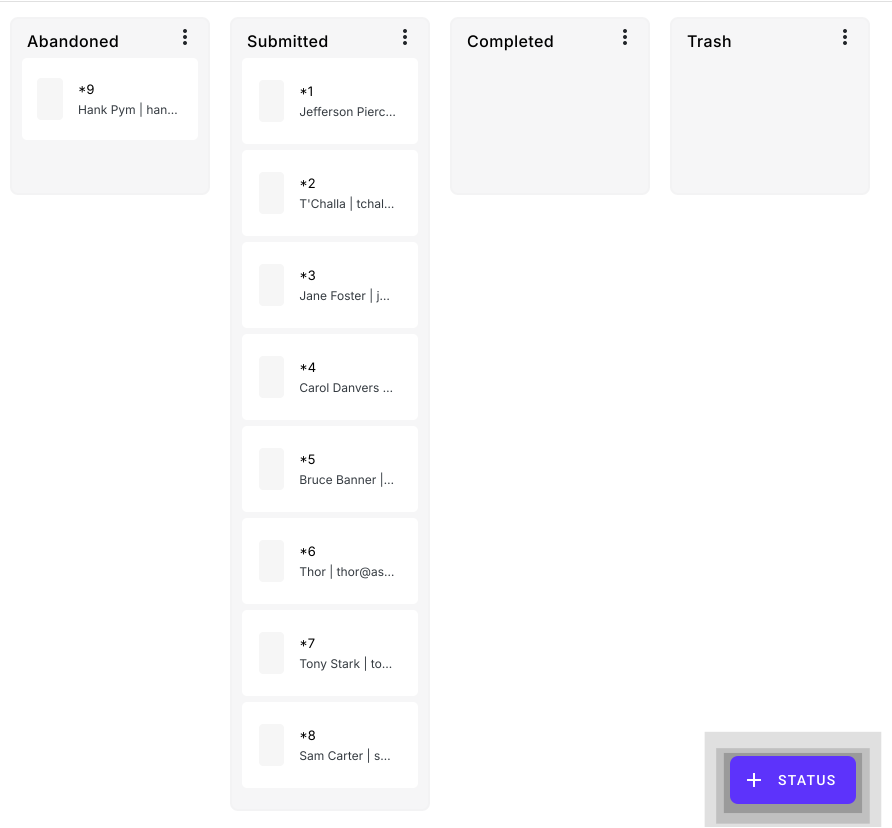
You can also use the number under "Total" in the daily notification email to view all the responses. You will see a board of all the responses submitted by your users. You can click on any response to view the detailed form response.
Tip: Move your Formfacade notification email to Primary folder and stay on top of your form responses!
Managing responses
Once you have the form setup and your users begin to fill it out, you can view and organize their responses into statuses. When your users fill the form, their responses will be organized into "Abandoned" and "Submitted" columns by default. You can review these responses and create your own statuses to organize them or use the default statuses automatically created for your form.
- Click on "Responses" tab
- Click on Kanban board

Use default statuses
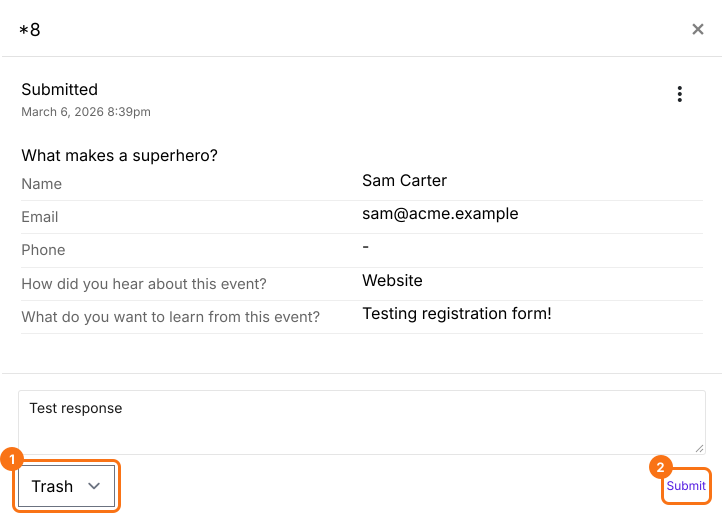
Not all form responses filled by the users are valid. You can review the responses and move such redundant/spam responses to the "Trash" column. You can also use the default "Completed" column to organize your form responses.
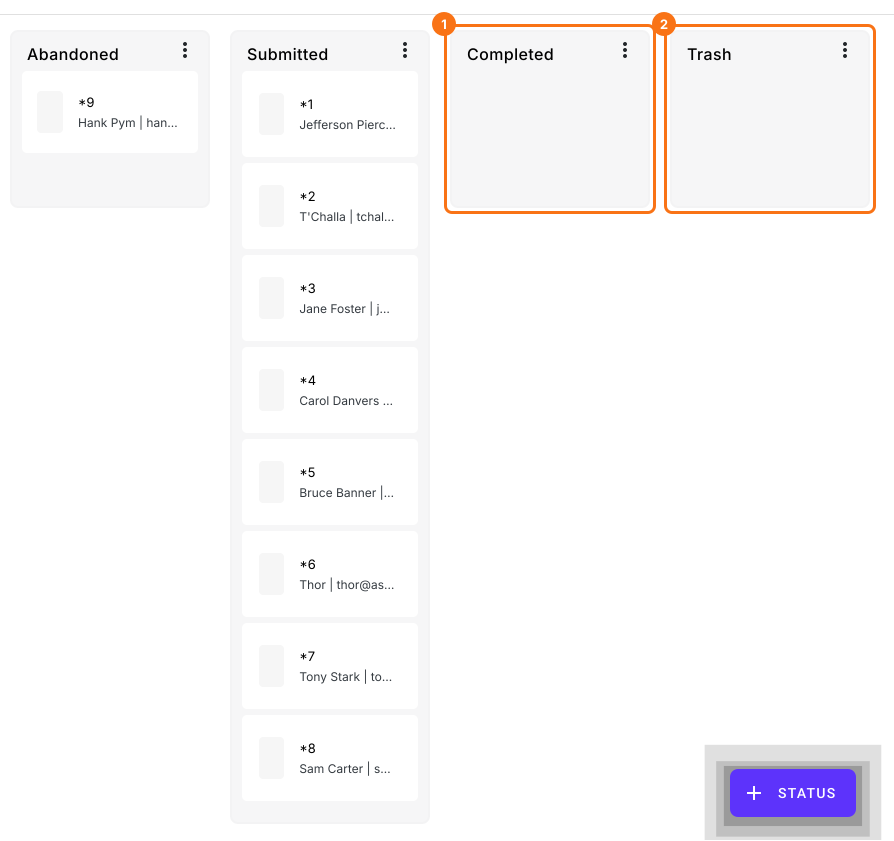
Once I created my event registration form, I tested it to make sure that the form works as expected. I don't want this test data to be shown along with actual signups. I can move this to the Trash column as shown below.
Create your own statuses
You can create additional statuses to prioritize & organize the responses. Let's say, a user who signed up for the event sends an email to cancel his invite. You can create a new status "Cancelled" and move any cancellations to this status.
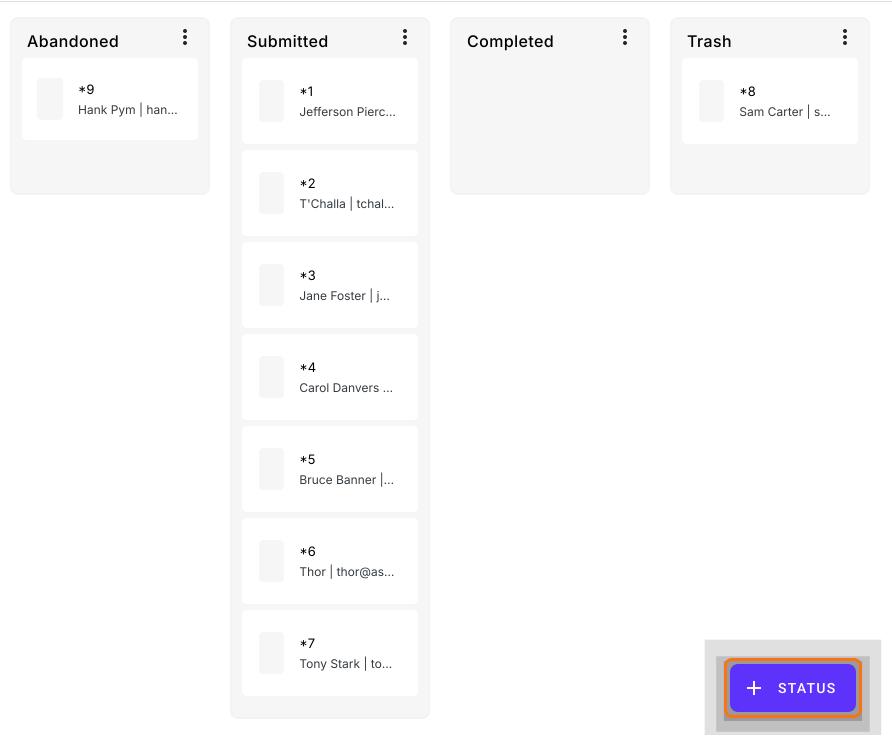
Open the Kanban board in the RESPONSES tab > Click on the "+ STATUS" button.
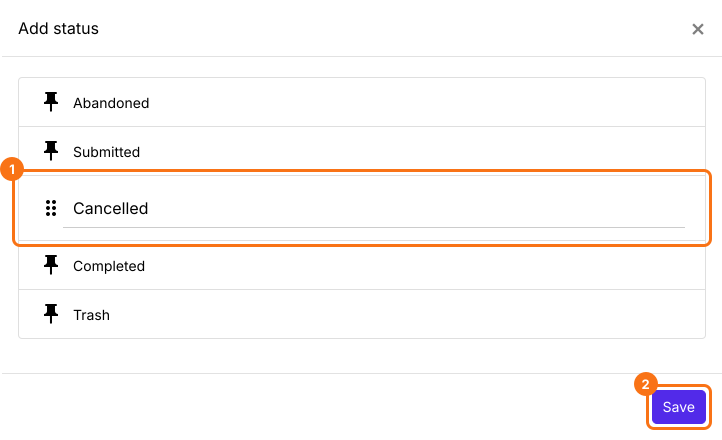
Enter the name of the new status "Cancelled" and click on "Save" button.
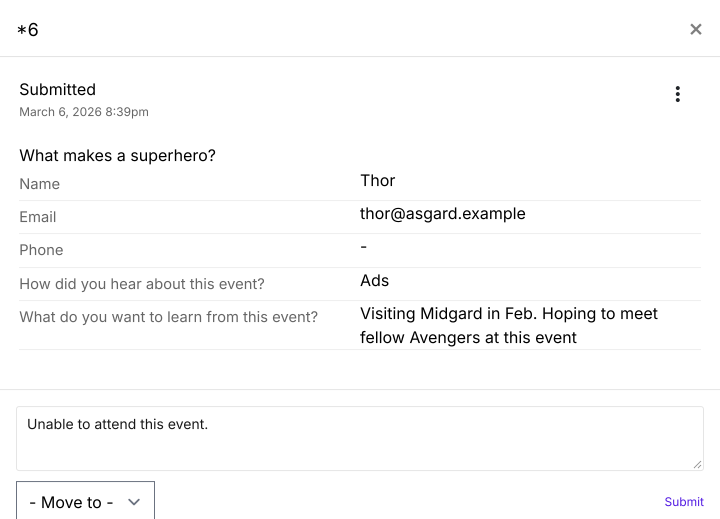
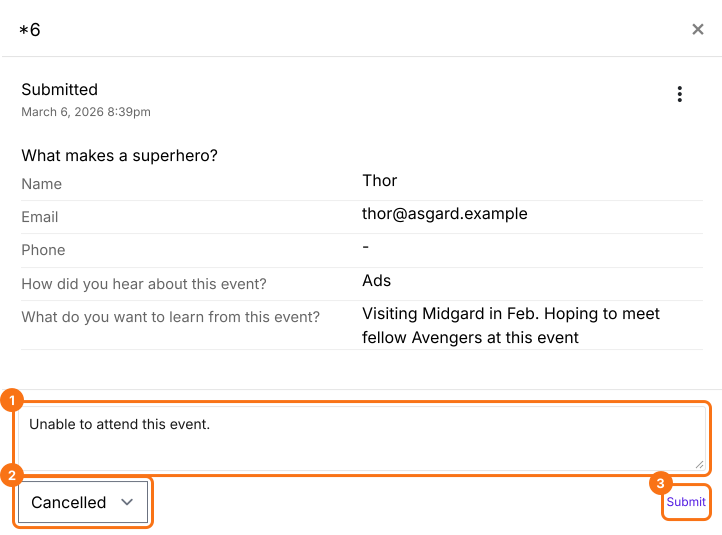
Open the form response > Scroll down to add a comment > Select "Cancelled" in "Move to" > Click on "Submit" button to move this response to the "Cancelled" column.
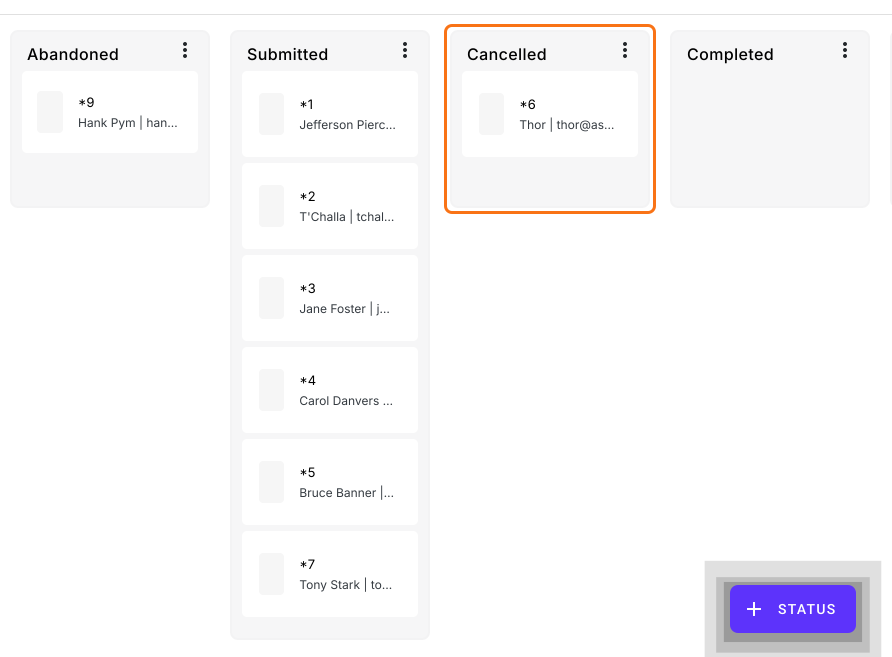
The new status "Cancelled" will be added to the default statuses as shown below. You can click on the response in "Cancelled" to view the recently moved response.
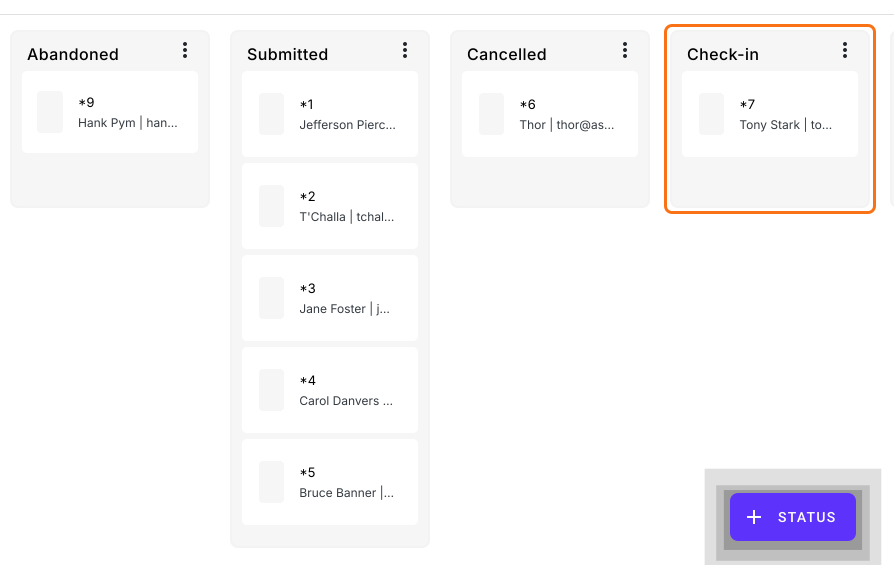
Similarly you can create a new status to check-in attendees on the day of the event by moving the responses from "Submitted" to "Check-in" column.
Summary
When responses pile up in one list, it is hard to see which are done, cancelled or spam. With Formfacade, you get a daily notification email and a Kanban board, and you move each response to a default status or to one you create. Create your form and complete the steps above. If you have any questions, write to support.
Last updated: