How to Create a WhatsApp Order Form?
"How to take food orders on WhatsApp"- Quora
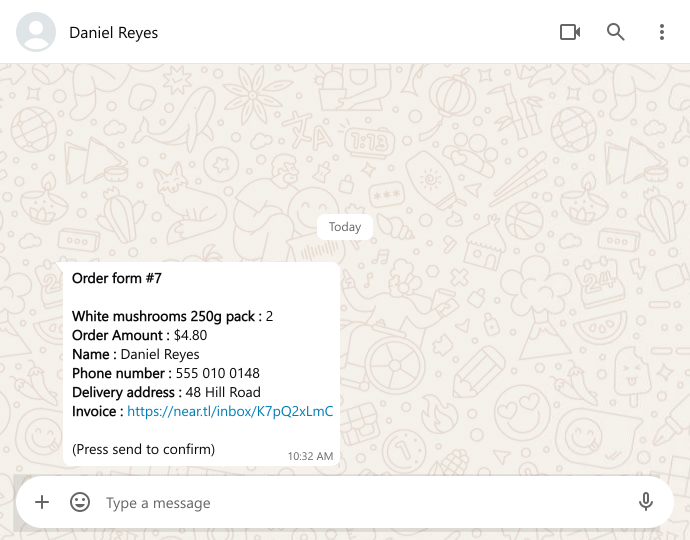
When orders arrive as WhatsApp chats, you piece each one together: the items over three messages, the address when you ask for it, the total worked out on your phone. A Google Form can collect the whole order in one go, but it can't add up the total, and it emails you instead of messaging you, so orders land outside the app you work in. Neartail's order form does both. Customers pick from your products and see the Order Amount add up. When they submit and press send, the whole order reaches your WhatsApp in one message, with their name, phone number and the amount.
Let's start. Create your order form and follow the steps below.
Add products and prices
- On the page that opens, click "Enter your form name". Type your form's name and click Generate.
- Check the outline it suggests and click Proceed.
- You land on the form's "Edit" tab. If it asks "Do you want to preview this form?", click No.
- If you imported a Google Form, it makes a copy of your form. If it says "Your form is private or protected", click Next and give access or publish your form in Google Forms and paste that link. Select your currency and click Continue. When it says "Your order form is ready", click Preview your form, then Edit form.

Your form already has products, questions for the delivery details and an Order Amount question.
The Order Amount question adds up the order with Neartail's formula TOTAL(), already written in its Calculate box, so you don't need to change it.
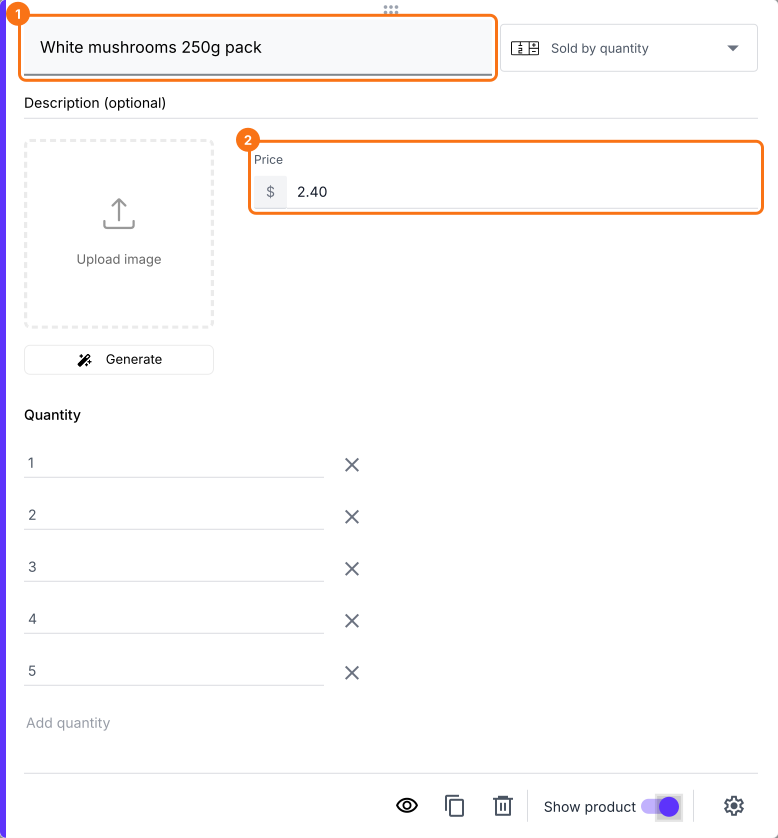
- Click each product to enter its name and price. For example, "White Mushrooms 250g pack".
- (Optional) Add images of your products.
- To add more products, click Add product in the toolbar on the right.
Link the Google Form with your WhatsApp
Your form does not send orders to WhatsApp until you do this.
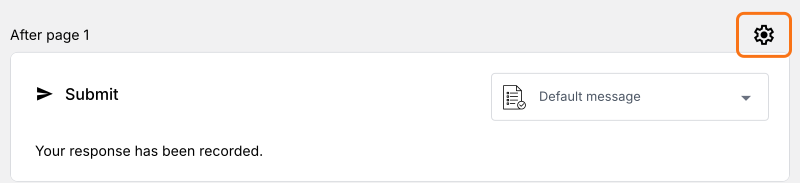
- Click the gear icon in the last After page row, above the Submit button.
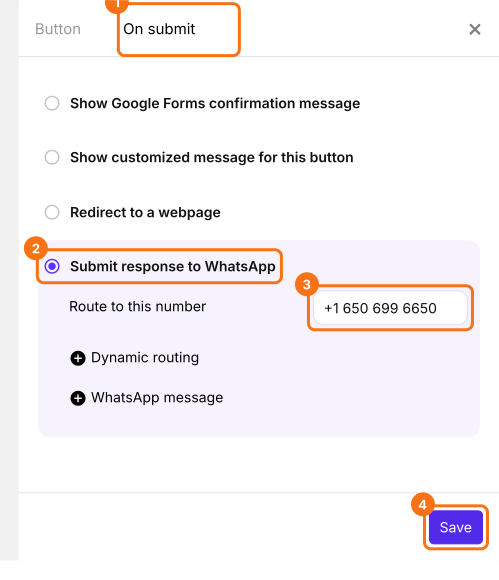
- Click On submit and select Submit response to WhatsApp.
- Under Route to this number, enter the WhatsApp number that you want to receive your orders on. Make sure to enter it with your country code starting with a plus. For example: +1 650 699 6650
- Click Save.
Preview & test the form and its calculations
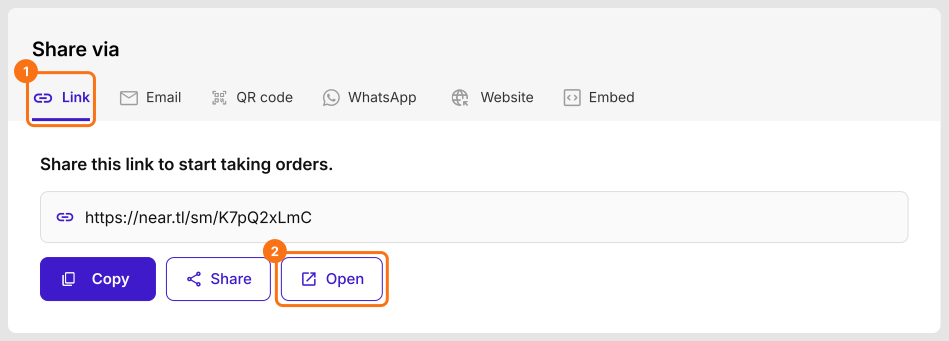
- Click Share at the top of the page.
- Click Link, then click Open.
Your form opens. Select some products and change the quantity to see the Order Amount add up.
How will you receive the order?
When your customer clicks Submit on a computer, they will see "Scan this QR code to confirm your order!". They scan it with their phone or, if WhatsApp is already on that computer, click the link below it.
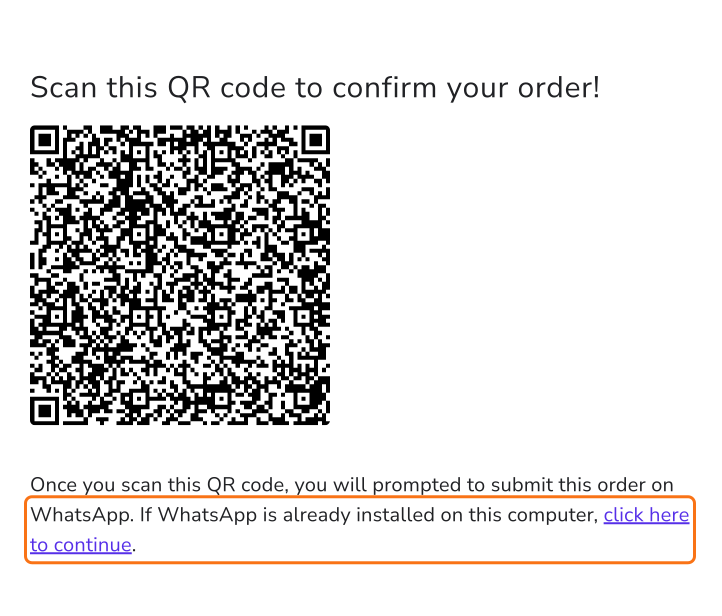
WhatsApp will open with the order written out. When they press send, the whole order will reach your WhatsApp number in one message, with their name, phone number and the amount.
Share your WhatsApp Form with your customers
Click Share at the top of the page to get your form's short link or QR code, and send it to your customers.
Summary
When orders come in as WhatsApp chats, the items, the address and the total arrive in pieces, and a plain Google Form can't add up an order or send it to your chat. With Neartail, customers order from one form and, when they press send, the whole order reaches your WhatsApp in one message with the total. Create your form and complete the steps above. If you have any questions, write to support.
Last updated: