How to Embed Google Forms in Website?
"Can I embed a Google Form directly into my website instead of linking to it?"- Google Docs Editors Community
You want your contact or registration form on your own website, not behind a link. A link to a Google Form sends visitors off your site, and some don't come back. Google's own embed code keeps them on the page, but the form sits in a fixed box with its own scroll bar and Google's look. With Formfacade, you paste one embed code into your webpage and the form shows there with no iframe and no Google branding, while the answers still go to Google Forms and Google Sheets.
Below are three ways to put a Google Form on your website, and where each one falls short.
1. Link to the form
Copy your form's link from Google Forms and put it on a button or in your menu. It is quick to set up, but visitors leave your website to fill in the form, and some don't come back.
2. Paste Google's Embed HTML
Open your Google Form and click on the ⋮ More icon at the top right corner. Select Embed HTML, copy the HTML code and paste it in the webpage where you want the form.
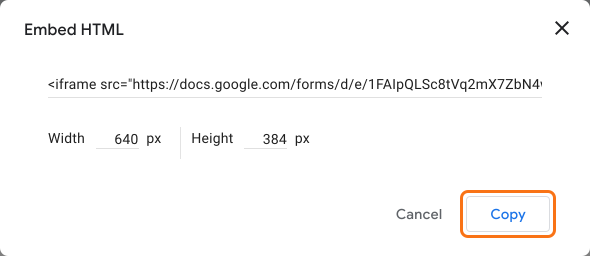
This keeps visitors on your page, but you can only change the width and height of the form. It shows in a fixed box with its own scroll bar, with Google's branding and the disclaimer note at the bottom.
3. Embed it with Formfacade
- Click Create your form, name your form, click Build form and click Proceed.
- Click on the "Share" tab, then click on Embed.
- Under "Where do you want to embed this form?", select "My website is different from above" and click on the Next button.
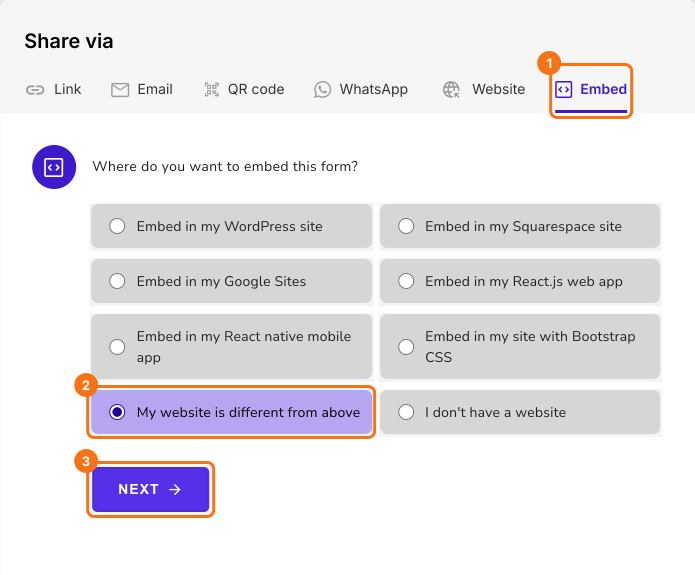
- Copy this embed code and paste this in the webpage where you want to embed this form.
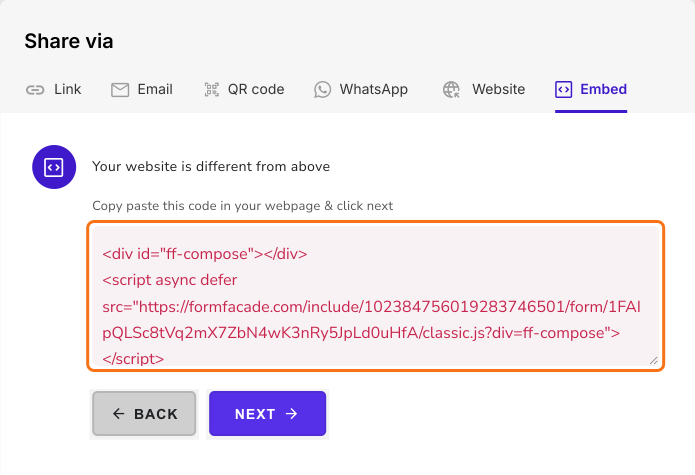
Your form will show on your webpage, with no iframe and no Google branding.
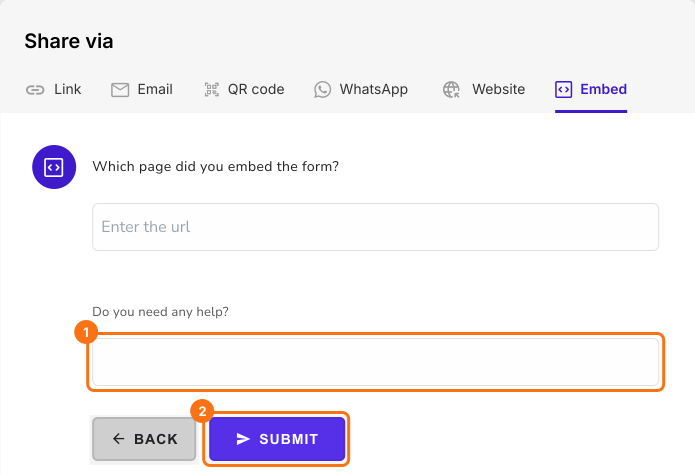
For help matching the form to your website, click Next, select "Yes, I want to customize UI like my website" and click Next.
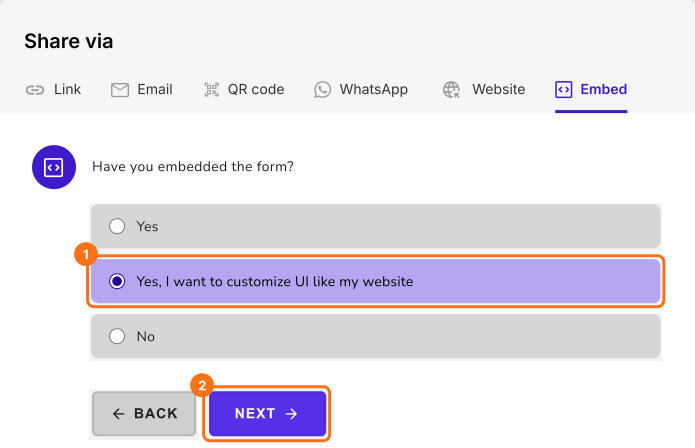
Enter the url of your page and your message and click Submit. Our team will reach out to you and help you with your request.
How to match your form to your website colors and fonts?
- Click on the "Preview" tab.
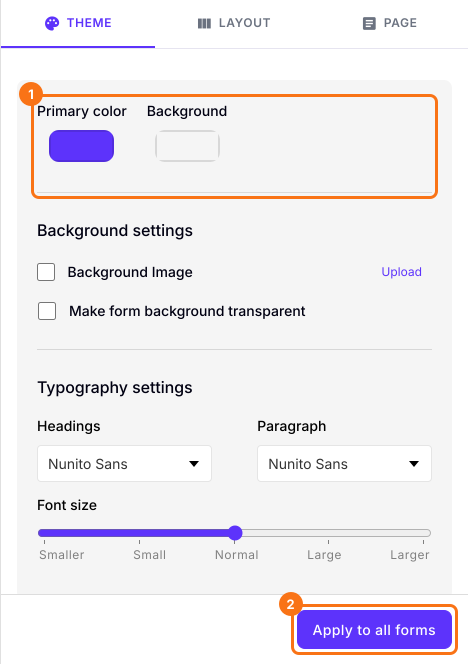
- Set your Primary color, Background and Typography settings to match your website.
- To keep these colors, click on the "Apply to all forms" button, which changes every live form on your account, not only this one. Your embed code works without it.
- To change the form layout, click on the Layout tab. That button says "Apply to this form".
What if my website is on WordPress, Squarespace, Shopify or Wix?
The default Google Forms embed can break on your website and cut off the form, so use the Formfacade embed code instead. Select your website if it is in the list and follow the instructions displayed. For Shopify, Wix or any other website, select "My website is different from above". You can also read How to Embed Google Forms in WordPress?, How to Embed Google Forms in Squarespace?, How to Embed Google Forms in Wix? and How to Embed Google Forms in Google Sites?
Summary
A link sends visitors off your website, and Google's Embed HTML gives you a fixed box with Google's look. With Formfacade, you paste the embed code into your webpage and the form shows there with no iframe, so visitors stay on your website. Create your form and complete the steps above. If you have any questions, write to support.
Last updated: